Last-minute discounts
Last-minute discounts help fill short-notice availability instead of leaving a free time slot unused.
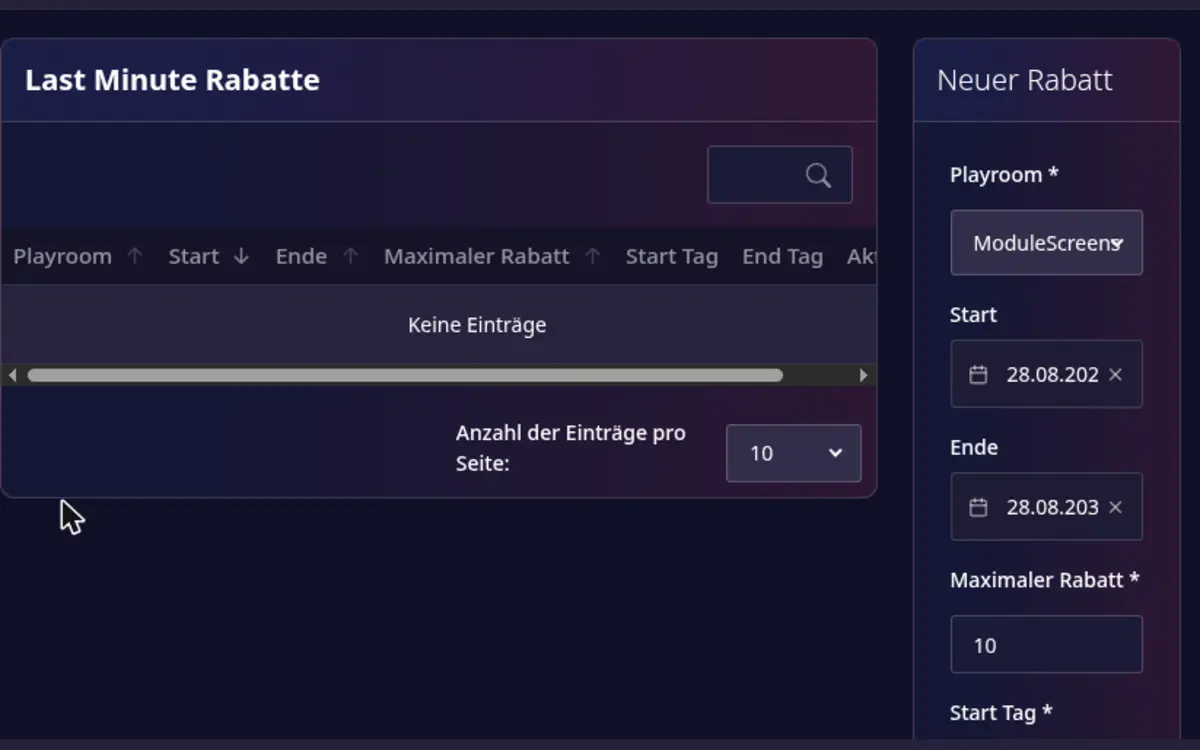
Create a discount
- Open Host area > Last Minute Discount.
- Under Create new Discount, select the Playroom and the period (Start and End) in which the rule is valid.
- Enter Start Day and End Day: the days before check-in at which the discount begins and reaches its maximum.
- Enter the Max Discount percentage.
- Review the rule and select Add.
The discount applies only when the configured conditions are met. It does not replace your base price or change bookings that are already confirmed.
How the discount is calculated
A rule is valid for a period (start and end date): it is considered when a guest books on a day within that period. The two day values count days before check-in:
- Start Day: from this many days before check-in the discount begins at 0 %.
- End Day: from this many days before check-in the full maximum discount applies.
- In between, the discount rises evenly day by day up to the maximum percentage.
Example: maximum 30 %, start 10 days, end 0 days. A guest booking 10 days before check-in gets 0 %, 5 days before about 15 %, and on the day of check-in 30 %. Earlier than 10 days there is no discount. The guest sees the discount in the booking summary as Last minute discount of … %.
Rules for entering a rule:
- Start Day must not be smaller than End Day. Both are between 0 and 100 days.
- The maximum percentage is between 0 and 100.
- Rules of the same playroom must not overlap in time.
- The module must be active for your company, otherwise no discount is applied.
Review and remove rules
Review active rules regularly so that the maximum discount still matches your pricing strategy. Open a rule to inspect its details, and delete it when the promotion should no longer apply.