Payments module
The payments module connects your own Stripe account to My Playrooms. Guests can then pay online during checkout, while the money is transferred to your Stripe account.
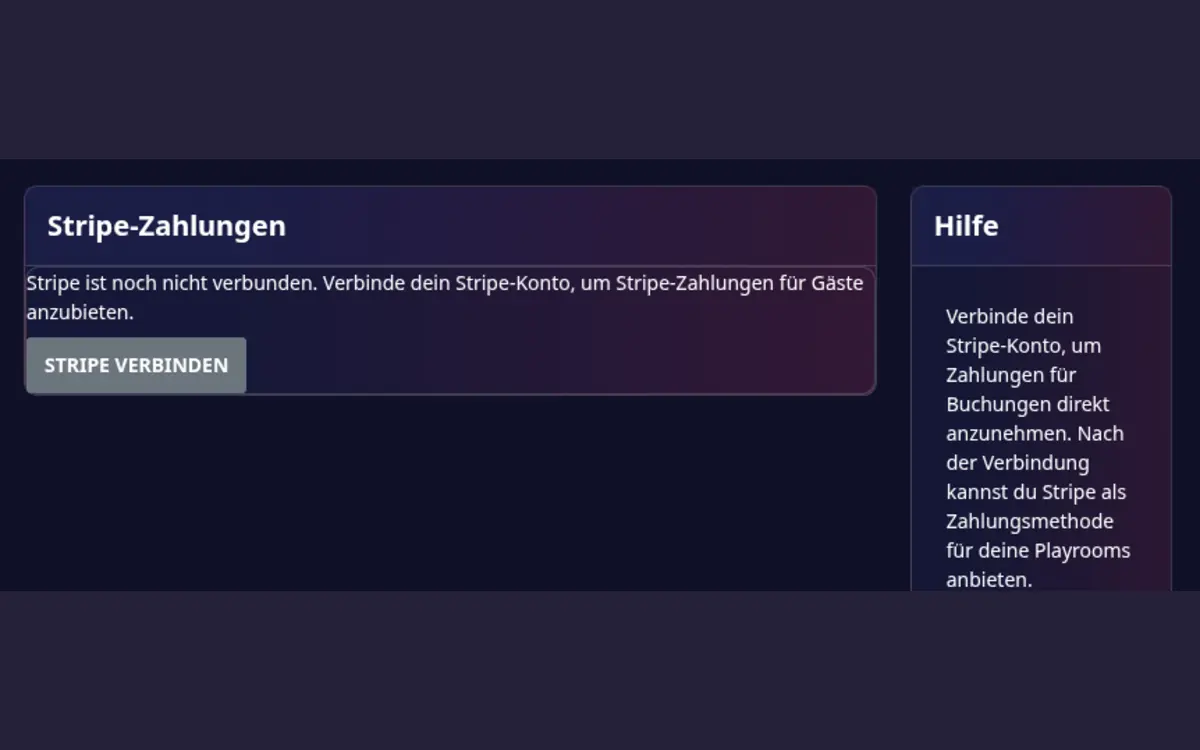
Stripe module overview. Complete Stripe onboarding before enabling Stripe for a playroom.
Requirements
- The Stripe payments module must be enabled for your company.
- You need a Stripe Connect Express account.
- Stripe must complete its identity, business, and bank-account checks.
- You must enable Stripe as a payment method in each playroom where you want to use it.
Set up Stripe
- Open Host area > Modules > Stripe payments.
- Select Connect Stripe.
- Complete the Stripe onboarding form for yourself or your company.
- Provide the requested address, identity, and bank details.
- Return to My Playrooms after Stripe finishes the onboarding step.
- If the status is Connection incomplete, select Continue Stripe connection and provide the missing information.
- When the account is connected and charges are enabled, open each playroom's Payment and invoice settings and activate Stripe.
How the money flows
- At checkout the guest pays online the share that is due then: the prepayment if your playroom requires one, otherwise the full booking amount. Remaining balance and deposit are paid later (see Payment overview).
- Stripe processes the payment and deducts its transaction fee.
- The regular My Playrooms booking commission is retained automatically during the payment; it is not billed separately for that transaction.
- The remaining amount is credited to your Stripe balance.
- Stripe pays out according to the payout schedule configured in your Stripe dashboard.
My Playrooms does not hold the guest's payment. Disputes and chargebacks are handled in your Stripe dashboard. You can start refunds for Stripe payments from the booking itself (see below). Stripe fees and payout timing are subject to Stripe's current terms and the rules of your country.
Payment overview
In the playroom's Accepted payment methods settings, enable Enable payment overview to show the overview on booking detail pages for you and the guest. It is disabled by default and applies to existing bookings too. For a past check-in with no recorded payment, the overview stays hidden. Stripe payment buttons remain available separately when a payment is eligible. The overview lists each step with amount, due date and status:
| Step | Meaning | Due |
|---|---|---|
| Prepayment | Upfront share of the booking price | when the booking is made |
| Remaining balance | Rest of the booking price | by check-in |
| Deposit | Security deposit, not part of the booking price | by check-in |
| Deposit refund | Return of the deposit | after check-out |
| Cancellation refund | Refund after a cancellation, rejection or expiry of an already paid booking | immediately |
- Online payment: for Stripe playrooms the guest pays each open step with Pay … now (with the amount due), for exactly that step's amount. Paid steps are marked automatically.
- Other payment methods: select Record payment and enter amount, date and method. Partial amounts are allowed; the step stays open until the full amount is recorded. If you entered too much or a wrong amount, use Correct and give a reason. Amounts paid through Stripe cannot be changed.
- Deposit refund: after check-out select Record refund, or Refund via Stripe if the deposit was paid through Stripe. If you return less than the deposit, you must enter a note explaining the deduction.
- Cancelled bookings: open steps are cancelled and paid steps stay visible. If the guest had already paid, a refund step is created according to the cancellation terms. If you reject a paid request, the guest gets everything back.
- If the booking price changes (for example through a discount or an extra charge), open steps are recalculated. Steps already paid are never changed; the remaining balance absorbs the difference.
Other payment methods
See Payment methods and PayPal for how guests choose a method and how PayPal payments are recorded automatically.
Stripe is an additional online payment method. Depending on your playroom settings, you can continue to offer offline methods such as bank transfer or cash.